Upload your photo
Choose a JPG, PNG or WebP image, or try one of the sample pictures. Your photo stays on your device while you work.
 Add a Grid
One photo. A grid in seconds.
Upload a photo, add customizable grid lines, and save a clear photo grid overlay. Choose a quick preset or customize every line. No signup required.or drop a photo onto the previewJPG, PNG, WebP · Up to 25 MB / 24 MP
Upload, adjust and download a photo with grid lines in three steps.
Choose a JPG, PNG or WebP image, or try one of the sample pictures. Your photo stays on your device while you work.
Start with a 3 × 3, 5 × 5 or 10 × 10 overlay. Change the rows, columns, line color and opacity until the grid is clear over your photo.
Compare the original with your grid preview, then save a full-resolution PNG or JPG. Choose PDF if you need a printable reference.
A photo grid adds evenly spaced horizontal and vertical lines over your picture. You can use the squares to compare positions, sketch an outline or copy a photo onto drawing paper.
Unlike a photo collage, a grid does not split your picture into separate photos. Switch between Grid preview and Original to see your photo with or without the lines before downloading.
Need grid lines on a separate layer instead of directly on the photo? Download a transparent grid overlay that you can place above your artwork in a drawing app.
Put a grid over your picture without changing its proportions. The controls update the preview immediately, so you can see whether the lines stay visible over light and dark parts of the photo.
Start with a 3 × 3 or 5 × 5 grid, choose 8 × 8 for more detail, or set the number of rows and columns yourself.
Choose dark lines for pale images, light lines for dark images, and adjust transparency or thickness for a readable overlay.
Turn on Square cell lock if you need square cells. A shorter row may appear at the bottom, but your photo will not be stretched.
Add letters and numbers to help you find each square, or leave them off for a cleaner photo. Download as PNG, JPG or PDF.
Try charcoal or dark blue lines. Lower the opacity if the grid covers delicate details.
Use white lines and compare the grid preview with the original to check contrast.
Keep the lines thin. Turn labels off unless you are copying cells onto drawing paper.
Upload a JPG, PNG or WebP image up to 25 MB and 24 megapixels. Your photo stays on your device. When you download a PNG or JPG, it keeps the size of your edited photo even if the preview looks smaller on screen.
Want to use another picture? Choose Upload photo again. You can rotate or crop a picture before saving it. Cropping removes the area outside your selection, but adding grid lines does not stretch the photo.
The best photo grid overlay depends on how much detail you want to transfer. These are starting points, not rules.
| Grid preset | Good for |
|---|---|
| 3 × 3 | Basic framing and large shapes |
| 4 × 4 | Simple sketches and beginner practice |
| 5 × 5 | General-purpose photo references |
| 8 × 8 | Detailed still life and portraits |
| 10 × 10 | Smaller features and complex outlines |
Take a 1200 × 900 pixel image. With 5 columns and 5 rows, each cell is 240 × 180 pixels, so the cells are rectangular. The photo is not stretched. Here is how the three choices differ:
| Setting | Result | Cell dimensions |
|---|---|---|
| 5 columns, 5 rows | 5 × 5 rectangular grid | 240 × 180 px |
| 5 columns, Square cell lock on | 5 columns, 4 rows; last row is shorter | 240 × 240 px for full cells |
| Crop to 900 × 900 px, then 5 columns with square lock | Exact 5 × 5 square grid | 180 × 180 px |
Set Rows and Columns separately when you want an exact 5 × 5 grid across the whole photo. Turn on Square cell lock when the shape of each square matters more than the number of rows. Crop to a square first if you want both.
Compare each original image with the same image after adding grid lines. These examples show how a photo grid can help you draw portraits, landscapes, and still-life subjects.
 Original
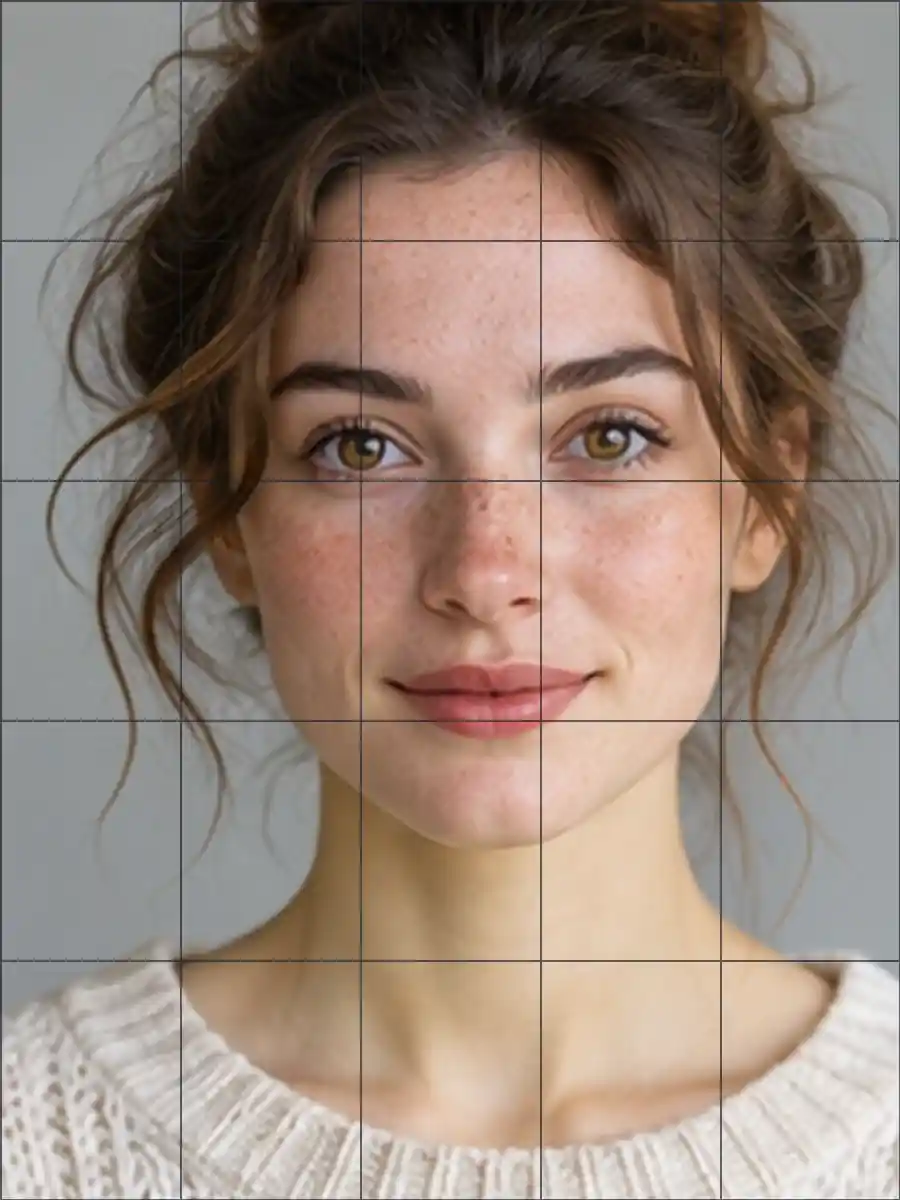 With Grid (5 × 5)
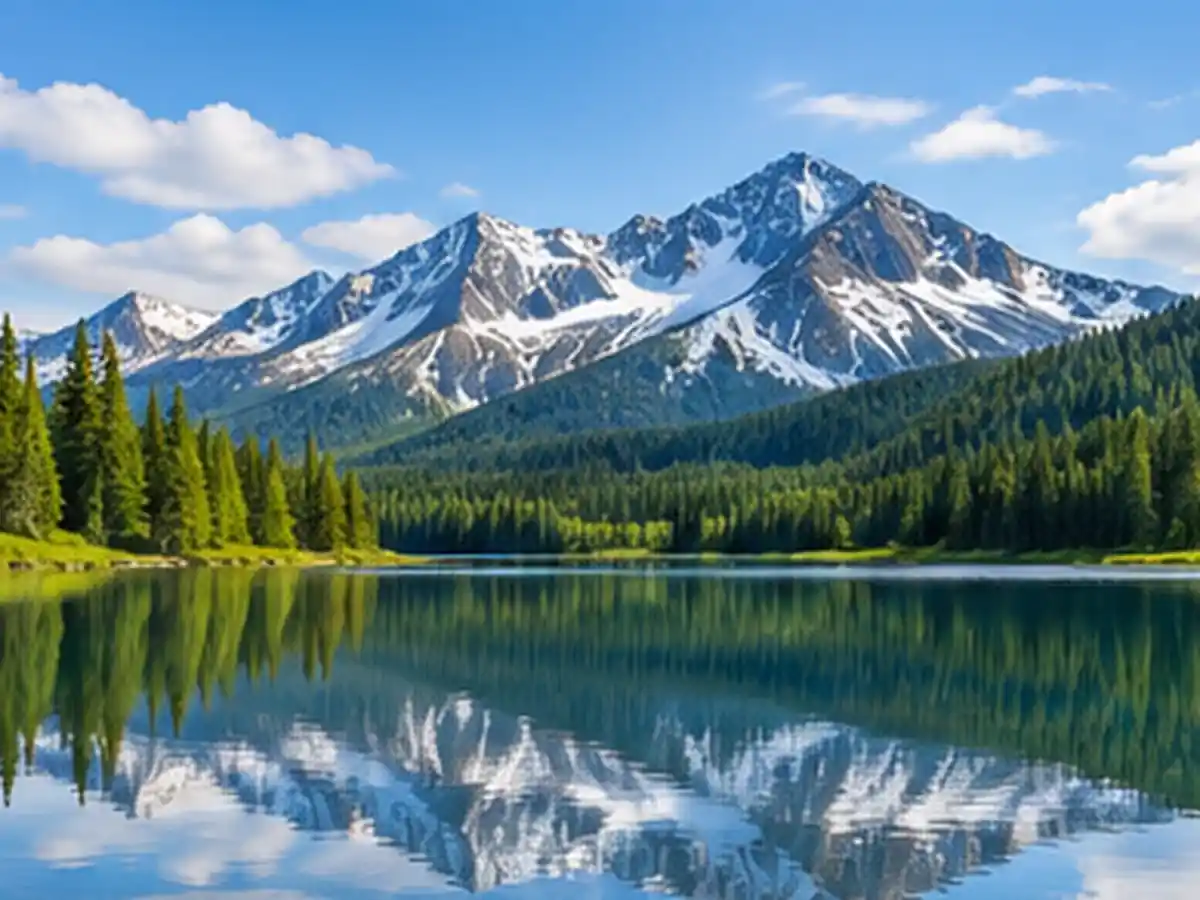 Original
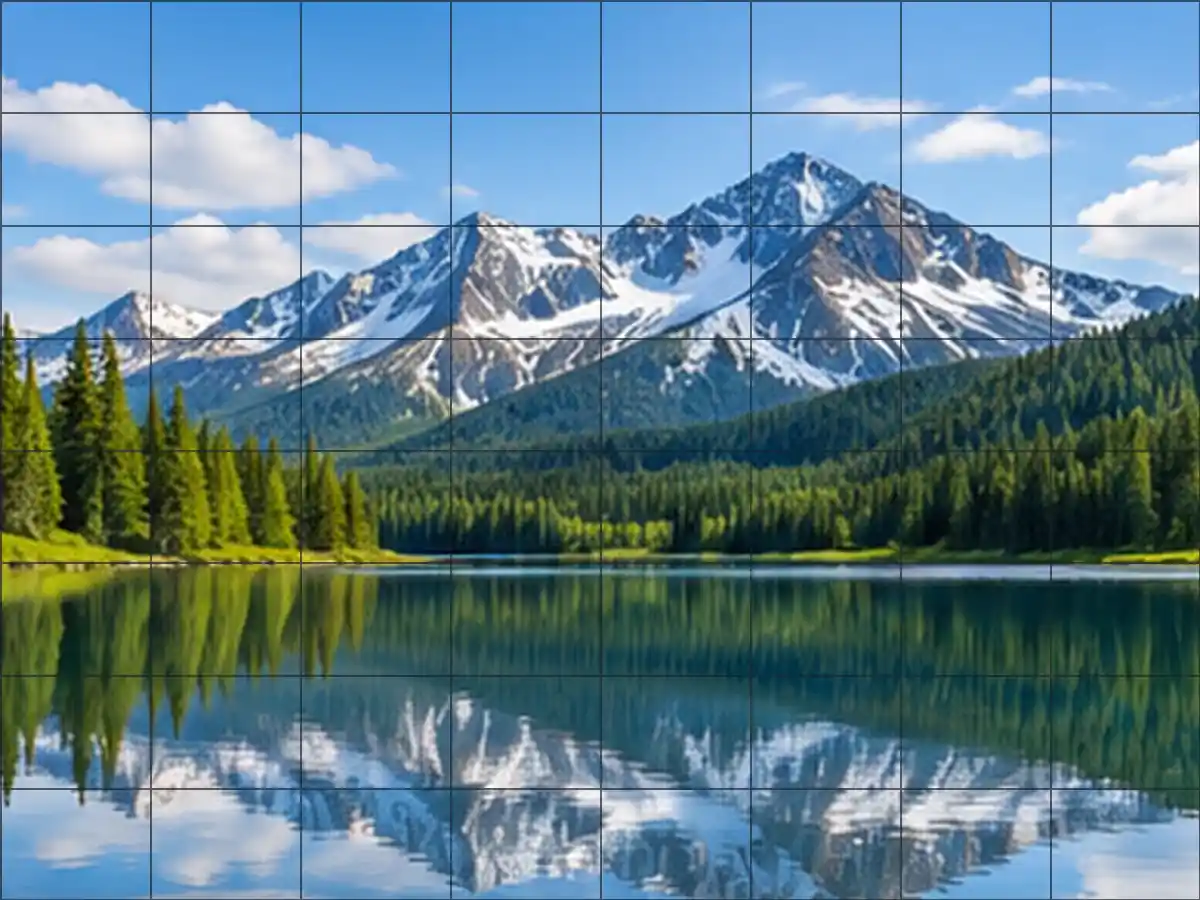 With Grid (8 × 8)
 Original
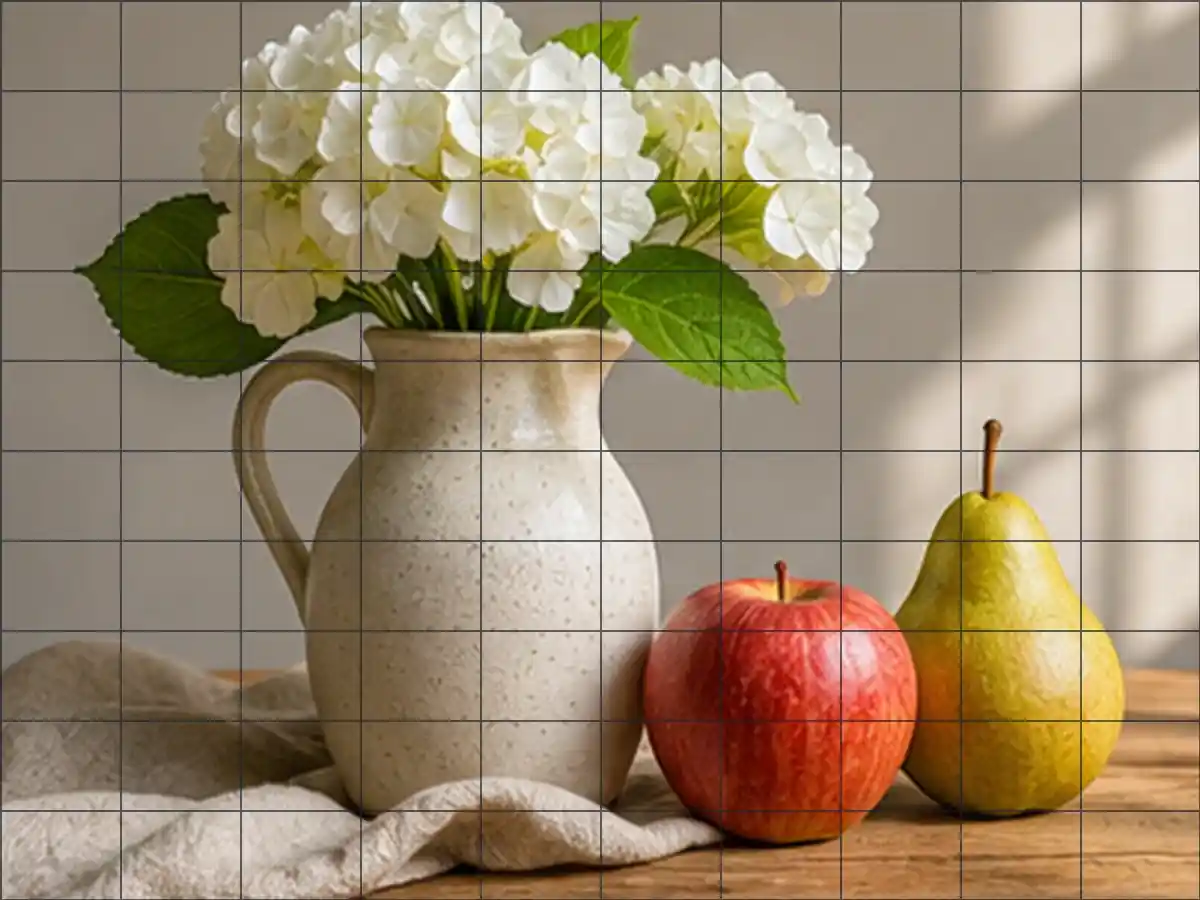 With Grid (10 × 10)
These example pictures were made with AI, rather than taken with a camera. Each pair shows the picture before and after adding grid lines. Try the same effect with your own photo above.
When you are happy with the grid, choose PNG, JPG or PDF under Download as. PNG and JPG downloads keep the size of your edited photo, not the smaller preview you see on screen.
| Format | Best for | What to know |
|---|---|---|
| PNG | Keeping fine grid lines sharp | Keeps grid lines sharp without adding compression blur |
| JPG | Sharing a familiar photo format | Smaller files in many cases, but fine lines may soften slightly |
| Printing a drawing reference | Fits your photo on A4 or US Letter with 10 mm margins; the squares are not set to a specific size in centimeters or inches |
The PDF above includes your photo. If you need a blank page of squares to draw or write on, make printable grid paper with your preferred spacing instead.
Open this page in your mobile browser, tap Upload photo and choose an image from Photos or Files. Select a preset, then choose Download PNG, JPG or PDF. Depending on your browser, the download may appear in Files, Downloads or a save/share menu. No separate app is required.
Want to draw matching squares on paper? Use the Drawing Grid Maker to work out how wide each square should be.
A grid helps you copy the position and proportions of objects from a reference image. Make the same number of rows and columns on your drawing paper. Then compare where outlines cross matching grid lines, one cell at a time.
When you enlarge your drawing, keep the grid proportions the same. For example, doubling every cell from 1.5 cm to 3 cm doubles the drawing's width and height. To learn how to transfer each shape, follow our step-by-step grid method drawing guide.
If your grid is not coming out as expected, check these settings before trying a different photo.
Choose white lines on dark images or charcoal on light images. Increase opacity or line thickness, then check the Grid preview against Original before downloading.
Turn on Square cell lock. Your photo will keep its shape, although you may get a shorter row at the bottom. If you want the same number of complete squares across and down, crop the photo to a square first.
Reduce line opacity, select a thinner line, or turn off the A, B, C and 1, 2, 3 labels. You can compare the original and grid preview without losing your settings.
Choose a JPG, PNG or WebP file under 25 MB and 24 megapixels. Very large pictures can be hard for your device to handle. If the photo will not open or download, try a smaller copy or another browser.
Quick answers about adding a grid to an image.
Upload your photo, pick a grid size or enter the number of rows and columns you want, then download your photo with grid lines. You can change the line color, thickness and opacity before saving.
Yes. Add grid lines, preview the result and download it without signing up or paying. Your photo stays on your device while you work.
Open this page in your iPhone browser, tap Upload photo, choose an image from your photo library or files, adjust the grid and tap Download. The saved file location depends on your browser settings.
Yes. Select a preset or set rows and columns separately. Choose a line color, change the thickness and opacity, or turn on grid labels.
Yes. Turn on Square cell lock to make the full cells square without stretching your photo. You may see a shorter row along the bottom. To make a complete 5 × 5 square grid, crop your photo to a square first.
Yes. Choose Printable PDF, select A4 or US Letter, and download the file. Your photo fits on the page with 10 mm margins. When printing, select Actual size to keep the page layout as shown.