Choose your canvas size
Select 1080 × 1080, 1920 × 1080, 1200 × 800 or enter the pixel dimensions you need.
 Make an Overlay ↗
Make a grid you can place over any image.
Create a transparent grid overlay for drawing, design or photos. Choose your canvas size, customize the lines and download a free transparent PNG. No photo or account required.Download a transparent grid, or add grid lines to a photo.
The gray checkerboard shows transparent areas. It will not appear in your PNG.
Make the grid separately from any photo, then download it as a transparent image.
Select 1080 × 1080, 1920 × 1080, 1200 × 800 or enter the pixel dimensions you need.
Pick the row and column counts, then change the color, opacity and line thickness. Use Square cell lock if you need equal square cells.
Choose Download Transparent PNG. The grid lines are saved with a transparent background, ready to add as a layer in your drawing app.
Choose On Photo in the tool, then upload a JPG, PNG or WebP. The canvas automatically matches your photo's size. You can compare the grid over your image and adjust its appearance before downloading.
Need just the grid? Select Download Transparent PNG. Want a finished reference picture? Select Download Photo with Grid. Both use the same rows, columns and line settings. Neither option uploads your picture to a server.
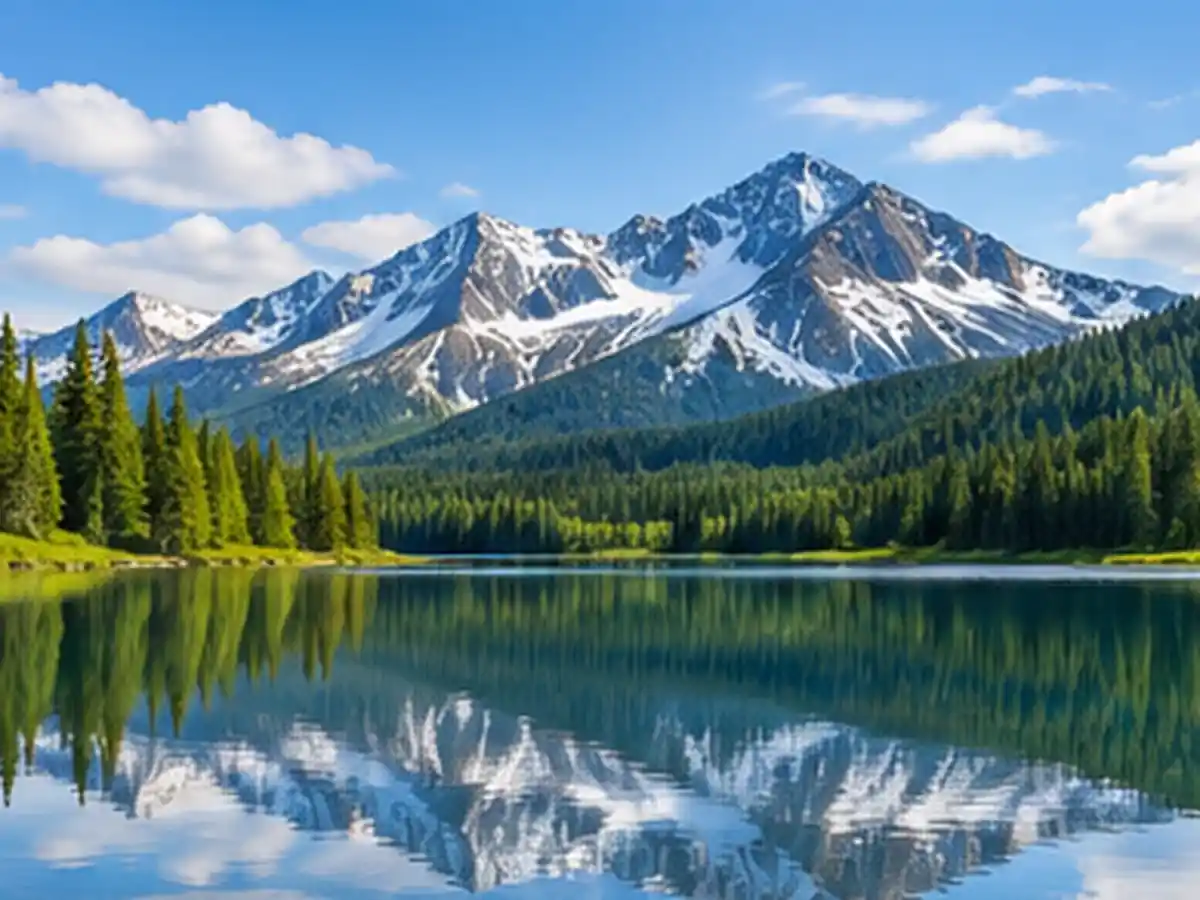
This landscape is an AI-generated illustration. Your download will use the grid settings you choose above.
If you want cropping, rotation or printable PDF output, use the Add Grid to Photo tool instead.
A transparent grid PNG works best when its canvas dimensions match the image or artwork underneath it. For example, use a 1080 × 1080 grid for a 1080 × 1080 drawing. If you upload a photo above, the canvas automatically uses the photo's width and height.
The canvas size sets the width and height of your PNG. Rows and columns decide how many cells fit inside it. On a wide image, those cells can be rectangular. Turn on Square cell lock to keep the full cells square.
| Canvas size | Grid setting | Result |
|---|---|---|
| 1080 × 1080 px | 8 columns × 8 rows | 8 × 8 square cells, 135 × 135 px each |
| 1920 × 1080 px | 8 columns × 8 rows | 8 × 8 rectangular cells, 240 × 135 px each |
| 1920 × 1080 px | 8 columns, Square cell lock on | 8 × 5 grid: four full rows of 240 × 240 px squares and a 120 px last row |
For a 1920 × 1080 canvas with 8 square columns, each column is 1920 ÷ 8 = 240 px wide. Four full rows use 960 px; the remaining 120 px forms a shorter fifth row. The grid stays aligned with the canvas instead of stretching the artwork.
Light grid lines are useful for sketching over an image; dark or high-opacity lines can make each cell easier to count. Set a thin line for detail work, or increase its width when you need a more visible reference.
For a grid over a light photo, try darker lines or higher opacity. On a darker image, white lines may be easier to see. You can change the settings at any time before downloading; the preview updates without changing the width or height of your canvas.
If you want to crop or rotate your reference and add grid labels to the finished picture, use the full Drawing Grid Maker instead.
Only the grid lines are visible; everything between them is transparent. The checkerboard is shown only in the preview. Add the PNG above another picture as a separate layer.
Saves your photo with the grid lines already on it. Use this version when you want a ready-to-share drawing reference.
Match the pixel width and height when putting the transparent grid over artwork in Procreate, Photoshop or another drawing app. Your downloaded PNG keeps its full size, even if the preview looks smaller on your screen.
A transparent grid overlay is useful because it can sit on a separate layer above your artwork. You can move, hide or remove that layer without drawing grid lines directly onto the photo.
If your imported grid appears too large or too small, compare its pixel dimensions with the document before resizing it. Stretching an 8 × 8 grid to a different aspect ratio changes the shape of its cells.
Use a grid overlay to compare shapes in a still-life sketch, position details in a digital painting or check spacing in a design. Keep it above your artwork while you work, then hide it when you want to see the drawing without guides.
Learning to transfer contours from one square to another? Read our grid method drawing guide. For blank grid paper you can print at a precise physical spacing, try the Printable Grid Maker.
A grid that looks right in the preview can appear different after you open it in another app. These checks usually help.
Some image viewers show a white background behind transparent areas. Place the PNG above a photo or colored canvas to see that only the grid lines remain. The preview checkerboard is not included in the download.
Check that the PNG and your drawing have the same pixel width and height. If you started with a photo, upload it here so the grid uses its dimensions automatically. When importing the PNG, align the edges without stretching.
An equal number of rows and columns does not guarantee square cells on a rectangular canvas. Turn on Square cell lock to make full cells square. The last row may be shorter because the canvas is not an exact multiple of the cell size.
Increase Line opacity or Line thickness for clearer guidelines. Try Black lines over a light photo or White lines over a darker one. Download again after changing the settings.
Quick answers about transparent grids and image overlays.
A grid overlay is a set of horizontal and vertical lines placed over an image or canvas. You can use it to check alignment, compare proportions, or organize a drawing.
Choose Transparent Grid, set the canvas size and number of rows and columns, then adjust the lines. Download Transparent PNG to save only the grid with no background.
Yes. Only the grid lines appear in the PNG; the spaces between them stay transparent. The checkerboard in the preview is not included.
Choose On Photo, upload a JPG, PNG or WebP, and adjust your grid. Download Photo with Grid for the combined picture, or Download Transparent PNG for the matching grid on its own.
Yes. Download the transparent PNG, import it into your drawing app as a new layer, and align it with your artwork. To match the edges exactly, use the same canvas dimensions as your artwork.
Yes. Adjust the color, line opacity from 10% to 100%, and thickness from 0.5 to 5 pixels before downloading.
Turn on Square cell lock. Full cells will have equal width and height without stretching your canvas. If your canvas shape does not fit whole square rows, the last row will be shorter.
Yes. The downloaded PNG keeps the width and height you chose. If you upload a photo, both download options use the photo's size.